
IPTV Firestick 2026: How to Install IPTV on Firestick 4K Max
IPTV Firestick 2026 setup is one of the easiest ways to watch live TV, sports, movies, series, and international channels on Amazon Firestick. In this complete guide, you will learn how to install IPTV on Firestick 4K Max using Downloader, IPTV Smarters Pro, TiviMate, Xtream Codes, and M3U playlist. For official device support, visit Amazon Fire TV.
This tutorial is made for beginners and advanced users who want a fast, stable, and simple IPTV setup on Firestick, Firestick 4K, Firestick 4K Max, and Fire TV Cube. If you need help with device troubleshooting, see the official Amazon Fire TV Help Center.
Last updated: 2026
Table of Contents
- Quick Answer
- Requirements
- Enable Developer Options
- Install Downloader
- Install IPTV Smarters Pro
- Install TiviMate
- Best IPTV Apps for Firestick
- Common Problems and Fixes
- FAQ
Quick Answer: How to Set Up IPTV Firestick 2026
- Open Firestick Settings.
- Enable Developer Options.
- Install the Downloader app.
- Allow Downloader to install unknown apps.
- Download IPTV Smarters Pro or TiviMate.
- Log in with Xtream Codes or M3U playlist.
- Refresh channels and EPG.
- Start watching IPTV on Firestick.
Why Firestick Is Great for IPTV in 2026
Amazon Firestick remains the most popular streaming device for IPTV Firestick 2026 users. It is affordable, portable, and compatible with premium players like IPTV Smarters Pro and TiviMate. For advanced Android guides, visit Android Developers.
Best Fire TV Devices for IPTV
| Device | Performance | Best For |
|---|---|---|
| Firestick Lite | Good | Basic IPTV streaming |
| Firestick 4K | Very Good | HD and 4K IPTV |
| Firestick 4K Max | Excellent | Best IPTV Firestick 2026 setup |
| Fire TV Cube | Excellent | Heavy streaming and advanced users |
Requirements Before Installing IPTV on Firestick
- Amazon Firestick device: Firestick 4K Max is recommended.
- Stable internet connection: 25 Mbps or higher for smooth HD and 4K streaming.
- IPTV subscription: A valid plan from IPTV Dream 4K subscription.
- IPTV login details: Username, password, server URL, Xtream Codes, or M3U playlist.
- Downloader app: Required to install IPTV apps on Firestick.
- VPN: Recommended for privacy and reducing ISP throttling.
Step 1: Enable Developer Options on Firestick
Before installing IPTV Firestick 2026 apps, you must enable Developer Options to allow installation from outside the Amazon App Store.
- Go to Settings > My Fire TV.
- Click About.
- Highlight your device name and click it 7 times.
- Go back to My Fire TV > Developer Options.
- Select Install Unknown Apps.
Step 2: Install Downloader
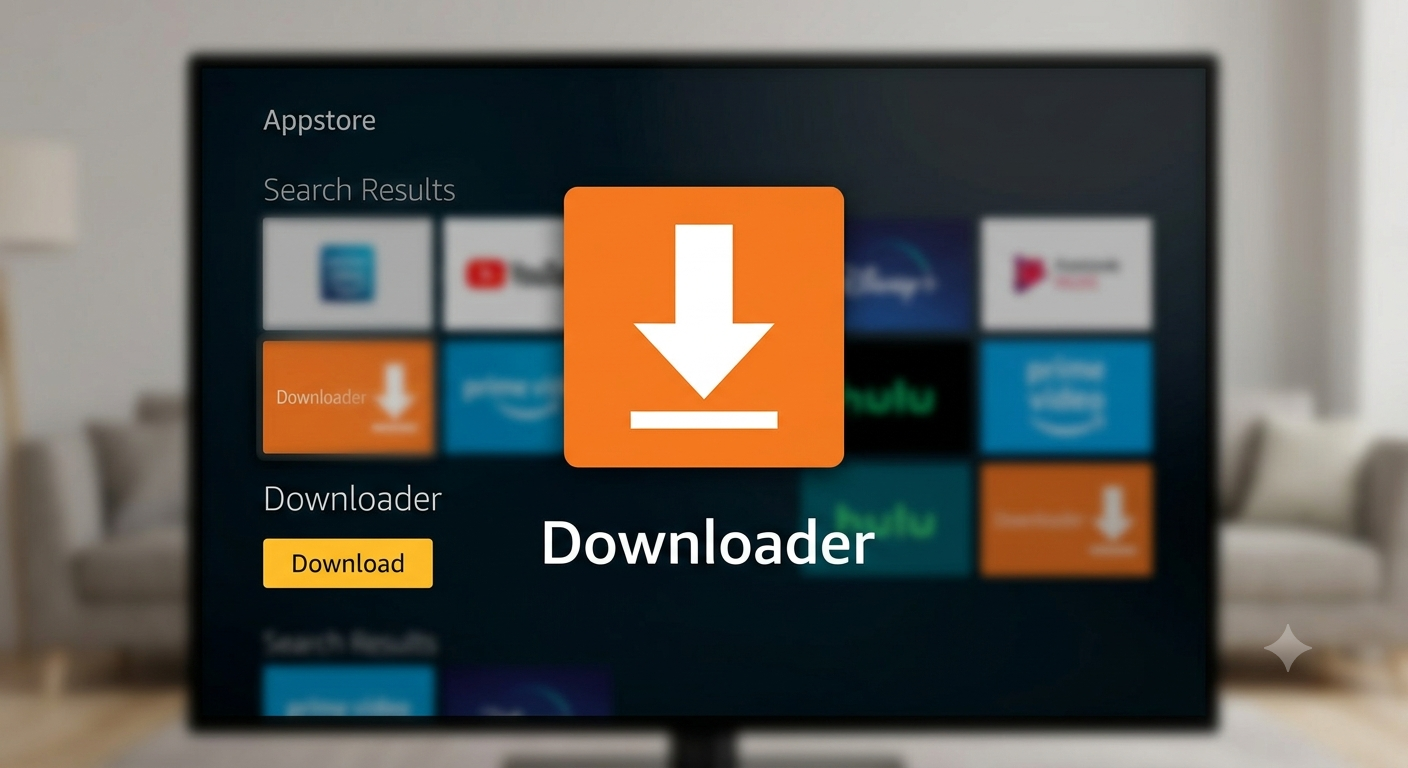
Open the Amazon App Store and search for “Downloader”. Install the app to begin sideloading your preferred IPTV players.
Step 3: Install IPTV Smarters Pro on Firestick
You can follow our dedicated IPTV Smarters Pro setup guide for a detailed walkthrough. This app is perfect for managing your M3U playlist or Xtream Codes login.
Step 4: Log In with Xtream Codes
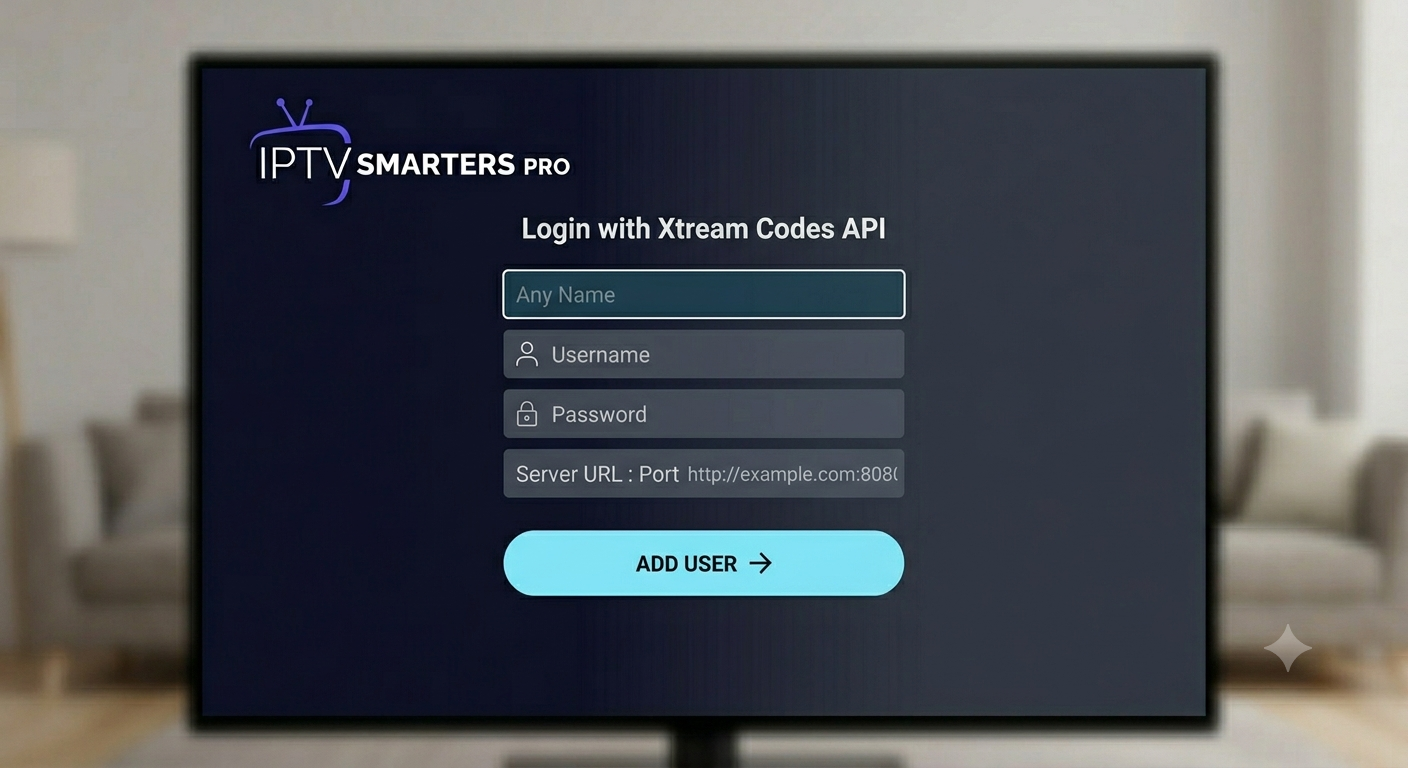
Open your IPTV player and select “Login with Xtream Codes API”. Enter your credentials provided by your service provider to access the full channel list.
Alternative Method: Install TiviMate on Firestick
For a more professional interface, we recommend using TiviMate. It is widely considered the best IPTV player for Android and Firestick devices in 2026.
Common IPTV Firestick Problems and Fixes
If you experience lag or freezing, check our IPTV buffering fix. Using a VPN can also help bypass ISP throttling and improve your live sports streaming experience.
FAQ: IPTV Firestick 2026
Can I install IPTV on Firestick in 2026?
Yes, you can install IPTV on Firestick in 2026 using players like IPTV Smarters Pro or TiviMate.
What is the best IPTV app for Firestick?
IPTV Smarters Pro is excellent for beginners, while TiviMate is the choice for advanced users. Check our list of the best IPTV players for more options.
Conclusion
Setting up IPTV Firestick 2026 is straightforward. For the best stability, use an active IPTV Dream 4K subscription and a high-speed connection.